Starbridge lets you supervise your coding agents from your phone or a browser. When an agent needs a decision from you, you answer with one tap, and your answer comes back as the session's next prompt.
You also see the runs that block you, answer permission prompts once you turn them on, and see what's left on each AI plan, with alerts before a window runs out.
Your phone, browsers and machines encrypt everything they send each other; the FAQ says what the server still sees. Use the free server at starbridge.run, or host your own.
Terms
- A harness is the tool an agent runs in: Claude Code, Codex, Pi, opencode, Cursor or Antigravity.
- An agent is the model working in a harness session.
- A question picker is a harness's own tool for asking you a question with options, such as
Claude Code's
AskUserQuestion. - The background service is
starbridge agent, which runs on each machine and holds its keys and its connection to the server.
Start
Get the app and sign in with GitHub.
- Android: the APK from GitHub Releases, or the repository in Obtainium to get each release (and each release candidate with "Include prereleases" on).
- Google Play, in closed testing: join the group, then opt in. Testers get each release candidate. The APK has the Play build's signing key, so a Play install later updates it in place.
- macOS: the desktop app's DMG from
GitHub Releases,
arm64for Apple silicon orx64for Intel. It updates itself; turn on Settings → Updates → Release candidates to get each release candidate. - iOS 16.4 and later: open starbridge.run in Safari and add it to the Home Screen to get notifications. The native iPhone app is in TestFlight, for testers only.
- Anywhere else: starbridge.run.
The first device you sign in on creates your account's keys and shows your recovery key once. Save it.
To keep your keys from the server, start in the Android app and add no browser (What does the server see?).
Install the CLI on each machine that runs your harnesses:
curl -fsSL https://starbridge.run/install.sh | shIt then runs
starbridge setup, and the CLI it installs updates itself. For Windows, Homebrew and npm, see The CLI. On your own server, use its address in place of starbridge.run.Pair the machine. Setup prints a code, a link and a QR code. Scan the QR code with your phone, or open the link in a browser where you are signed in. On a machine with no browser, type the code on your phone in Settings → Devices → Add a device. The code expires in 10 minutes.
Setup then installs Starbridge in each harness it finds, starts the background service, and offers CodexBar, which reads your AI plans' quotas (what setup does). CodexBar is optional: setup asks before installing it, and everything but quotas works without it.
Answer the test question that setup offers to send. If nothing arrives, run
starbridge status. To send one again later:starbridge ask --question "Does this reach me?" --option Yes --option No --waitAsk from an agent. Start a new session in any harness, or resume a running one, and type:
Ask me through Starbridge whether to name the branch "fix" or "patch", then create it.The question reaches your phone with the two names as buttons. Your answer comes back as the session's next prompt.
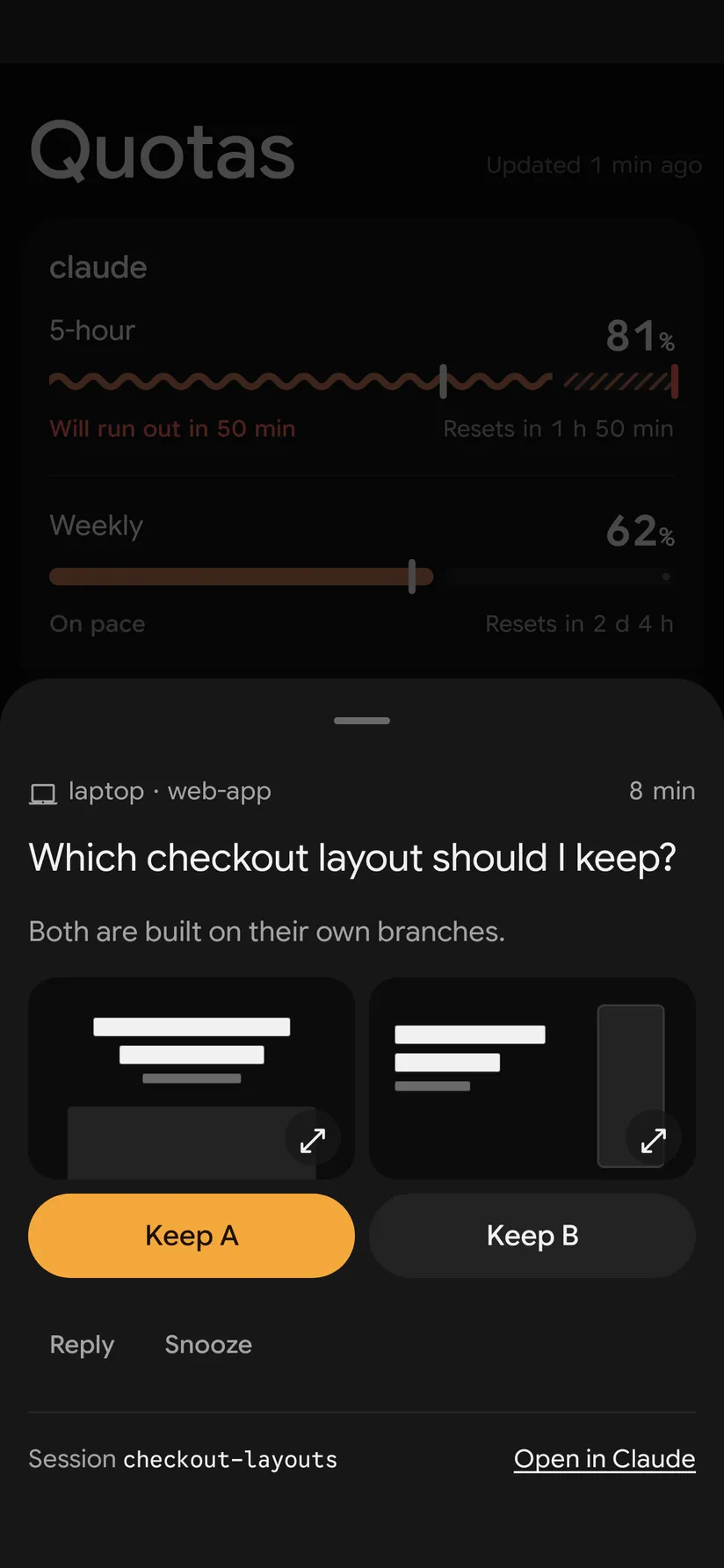
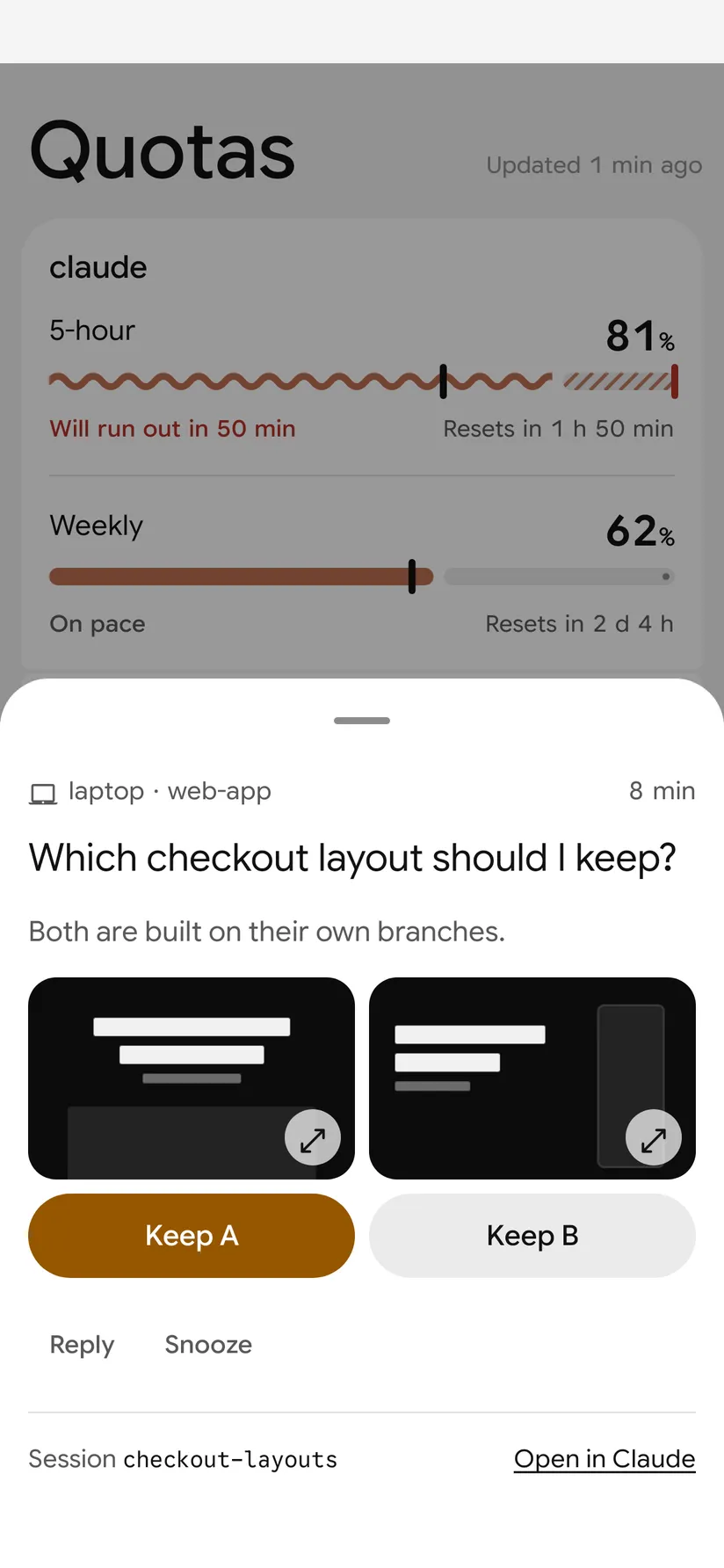
A question on the Android app Tell your agents when to reach you, beyond the rules setup gives them (Agent instructions).
Your harnesses notify you too, so the same question can reach you twice. Notifications says what to turn off.
Sessions already running
A harness loads Starbridge when it starts, so a session started before setup doesn't have it. Quit the harness and resume the session; it keeps its conversation. Run the command in the session's own directory, since the last session is per directory.
| Harness | Resume the last session | Pick one |
|---|---|---|
| Claude Code | claude --continue |
claude --resume |
| Codex | codex resume --last |
codex resume |
| Pi | pi --continue |
pi --resume |
| opencode | opencode --continue |
opencode --session <id> |
| Cursor | cursor-agent --continue |
cursor-agent --resume |
| Antigravity | agy --continue |
agy --conversation <id> |
Runs
A run is a command that blocks you or needs you at the machine, such as a release, an eval on a
rented GPU, or a test that takes over the screen. The agent wraps it in starbridge run:
starbridge run --title "Release 1.4" --reason "publishes to npm and Homebrew" -- make releaseYour devices show its title, its reason, the time elapsed and its progress, then whether it passed or failed, with the exit code. They never show the command's output. A run with no news for 3 minutes shows as lost.
Progress comes from what the command prints: [3/7] steps, a percent such as 42%, or the
terminal progress sequence OSC 9;4. The output goes through a pipe, so a progress bar that a tool
draws only on a terminal shows nothing.
To hear about other commands, such as local inference, add a line to your agents' instructions (Lines to copy).
Recovery key
The recovery key adds a new device to your account when you have lost every device. Keep it away from your devices, in a password manager or on paper.
To replace it, pick Replace next to Recovery key in Settings → Devices (in the Android app, Settings → Devices and machines). Replacing needs the current key, so a lost key is gone for good, but you keep the devices you have.
To recover, sign in on a new phone or browser and pick "Use the recovery key". This removes every other device and machine from the account. Add your phones and browsers again from Settings → Devices → Add a device, and pair each machine again:
starbridge pair --force